
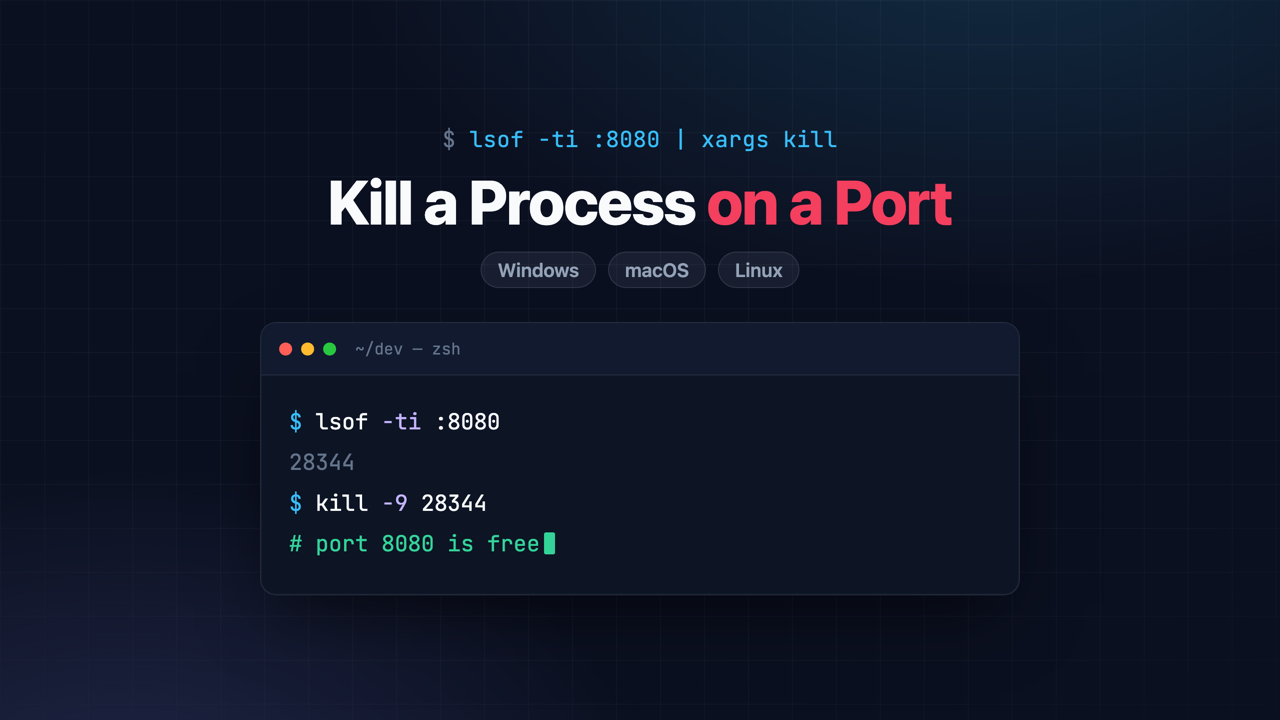
If you do any kind of web development, you have seen this error. You go to start your application and instead of a running server you get something like this:
Web server failed to start. Port 8080 was already in use.
It happens to all of us. You have a handful of apps that all default to port 8080, you forgot to shut one down, and now the port is occupied. The fix is simple once you know it: find the process holding the port, then kill it. In this guide I will show you how to do exactly that on Windows, macOS, and Linux, plus a cross-platform trick that works everywhere.
The two steps are always the same:
- Find the process ID (PID) that is listening on the port.
- Kill that process by its PID.
Let's walk through each operating system.
Kill a Process on a Port in Windows
Open a Command Prompt (or PowerShell) and find the PID that owns the port with netstat:
netstat -ano | findstr :8080
You'll see output like this, and the number in the last column is the PID:
TCP 0.0.0.0:8080 0.0.0.0:0 LISTENING 28344
Now kill it by that PID with taskkill. The /F flag forces termination:
taskkill /PID 28344 /F
The PowerShell way
If you prefer PowerShell, you can do it without copying the PID by hand:
Stop-Process -Id (Get-NetTCPConnection -LocalPort 8080).OwningProcess -Force
That finds the process on port 8080 and stops it in a single line.
Kill a Process on a Port in macOS
On macOS the tool you want is lsof (list open files). Point it at the port to see what's running:
lsof -i :8080
That prints the command and its PID. To kill it, pass the PID to kill:
kill -9 <PID>
Even better, you can combine both steps into one command. The -t flag makes lsof output only the PID, which you feed straight into kill:
kill -9 $(lsof -ti :8080)
A quick note on kill -9: that sends SIGKILL, which terminates the process immediately. If you would rather let the app shut down gracefully, drop the -9 to send the default SIGTERM first, and only reach for -9 if it refuses to quit.
Heads up: on recent versions of macOS, ports like 5000 and 7000 are used by the AirPlay Receiver. If one of those is "in use" and you didn't start anything, check System Settings → General → AirDrop & Handoff.
Kill a Process on a Port in Linux
Linux gives you a few options. The lsof approach is identical to macOS:
sudo lsof -i :8080
kill -9 <PID>
If lsof isn't installed, ss is available on most modern distributions:
ss -ltnp | grep :8080
Or, the shortest option of all, fuser will find and kill the process on the port in one shot:
fuser -k 8080/tcp
Kill a Process on Any Port, on Any OS
If you jump between machines (or you just don't want to remember three sets of commands), there is a handy npm package called kill-port that works everywhere Node runs. No install required thanks to npx:
npx kill-port 8080
That's it. One command, Windows, macOS, or Linux. For JavaScript developers who already have Node installed, this is often the fastest option.
Frequently Asked Questions
How do I kill port 8080 specifically?
Use the command for your OS above and substitute 8080 for whatever port you need. On macOS/Linux: kill -9 $(lsof -ti :8080). On Windows: netstat -ano | findstr :8080 then taskkill /PID <pid> /F.
How do I find what's using a port without killing it?
Run just the "find" step: lsof -i :8080 on macOS/Linux, or netstat -ano | findstr :8080 on Windows. That tells you the process and PID before you decide to kill anything.
Why does port 8080 keep getting stuck? Usually an app didn't shut down cleanly—an IDE run that was force-stopped, or a container that's still running in the background. If it happens constantly, check for orphaned processes or a Docker container still bound to the port.
Wrapping Up
The next time you hit "port 8080 already in use," you know the drill: find the PID, then kill it. Bookmark this one so you have the command for whatever machine you're on.
Happy Coding!
Dan
Related Articles
Spring Boot 3 to 4 Migration: Fixing Every Break
A hands-on Spring Boot 3 to 4 migration: upgrade a real app, then fix Jackson 3, modular starters, the missing H2 console, test imports, and JSpecify.
Spec-Driven Development for Solo Developers: My Plan
Spec-driven development without the team process. The lightweight plan I use as a solo developer, from one PRODUCT.md to a retro, on a Spring Boot Stripe store.
Spring AI TypeSafe: Build a Model Router From Scratch
Learn Spring AI TypeSafe by building a model router from an empty app. One Choice question to Jev picks the cheapest OpenAI model tier for every prompt.
subscribe.sh
$ subscribe --list weeklyish
Enjoyed this post? Get the next one.
Java, Spring, and what I'm learning — one email, weekly(ish). Unsubscribe anytime.